Start here
What one install gives you, the three steps to get there, and how access works.
One browser package is the whole install. Everything below arrives from it — the recording, the events, the errors, and the people — which is why setup is three steps rather than an integration project.
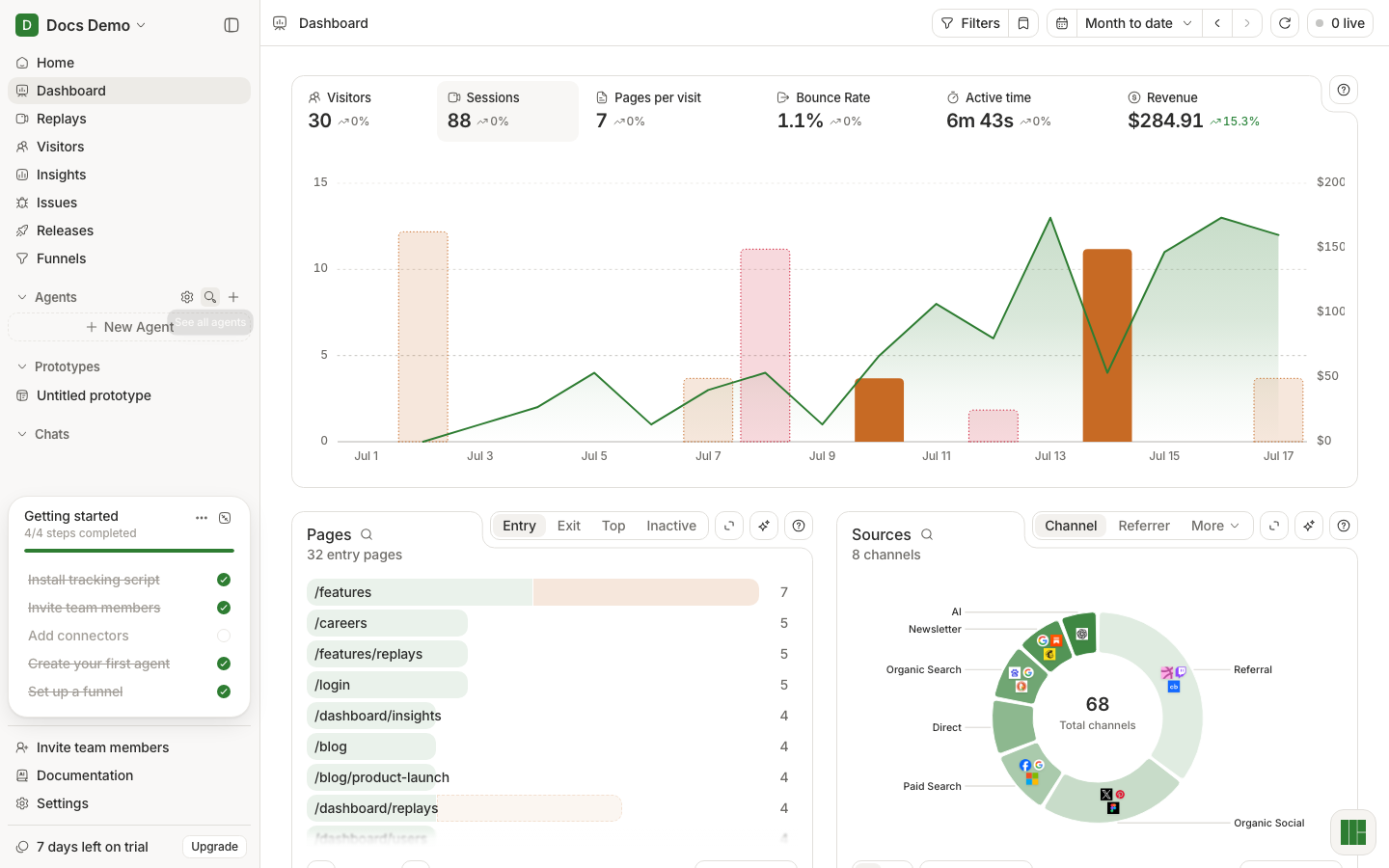
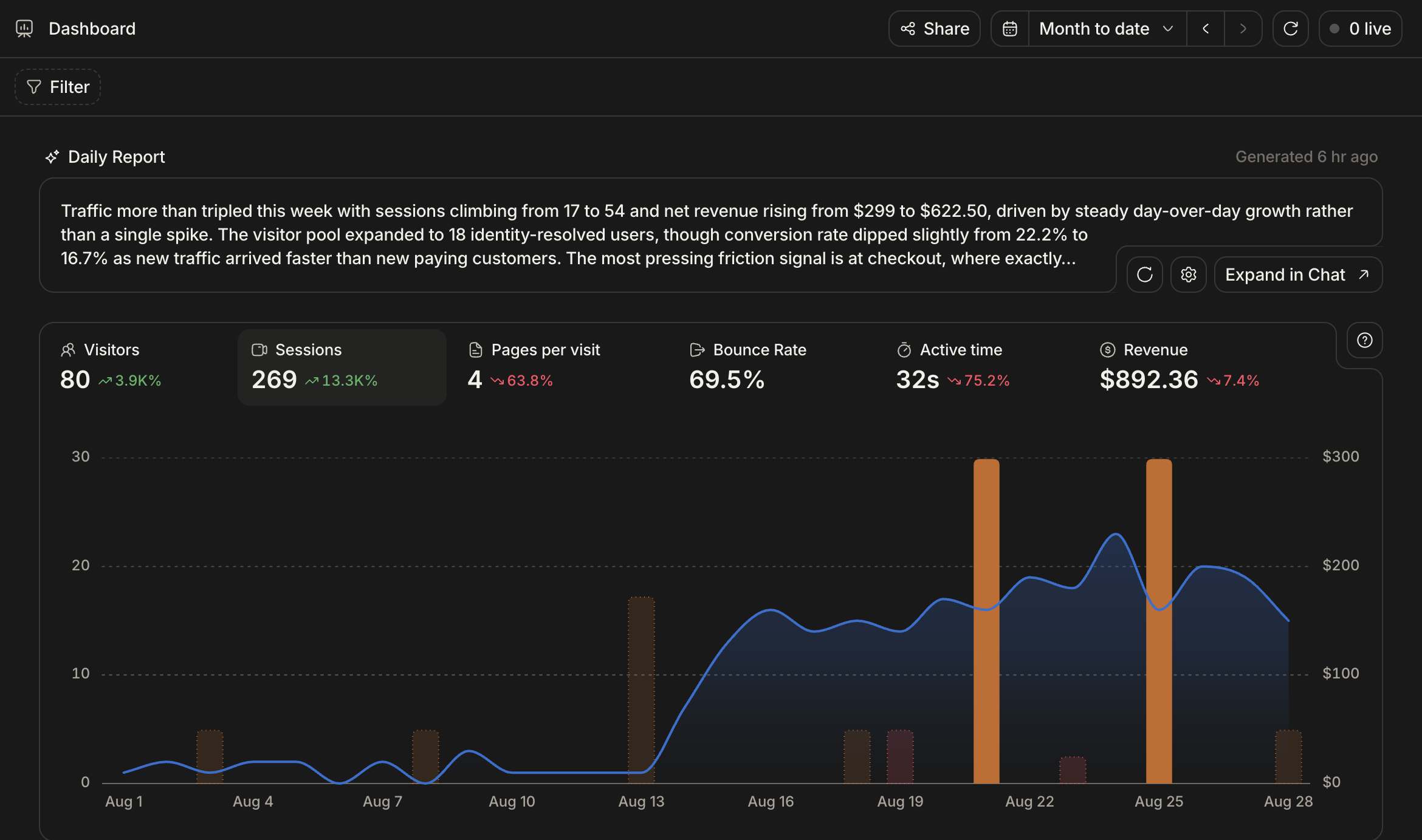
What you get from one install
One browser package records the session with rrweb and posts batches to our ingestion service. From that install alone, with no extra instrumentation:
- Replays — what the person actually saw and clicked
- Autocaptured events — page views, clicks, rage clicks, dead clicks, form submissions
- Errors — uncaught exceptions and unhandled rejections, grouped into issues
- Visitors — anonymous people, upgraded to named people once you identify them
- Web Vitals and traces — LCP, CLS, INP, FCP, TTFB, plus page-load spans, on Performance
Two things need a line of code each: naming your users and recording your own events.
Get there in three steps
Install
One line, or the CLI wizard. Framework-specific placement.
Verify
Confirm a real session arrived before you build on it.
Identify and track
Attach a name to a visitor and record your own events.
Access
Billing is sales-led and handled offline — there is no self-serve checkout in the product. Once your project is unlocked, everything in these docs applies to it.