Create an agent that does real work
Build a saved agent from a prompt or template, attach the tools it needs, test it, save it, and run it so the output ties back to project data.
Home chats are disposable. An agent is a reusable worker with instructions, tools, and optional schedules or channels. This guide gets you to one useful run, not a tour of every builder field.
Before you start
- Data is flowing so the agent has something to query.
- You know the job in one sentence (example: “Summarize rage clicks and link replays every Monday”).
Start from a job, not from the form
Open Agents → Create Agent (or Browse Templates if a template already matches).
Prefer prompt-first: describe the job in a sentence. Let the builder draft name, instructions, and suggested tools. Edit anything wrong before you save.
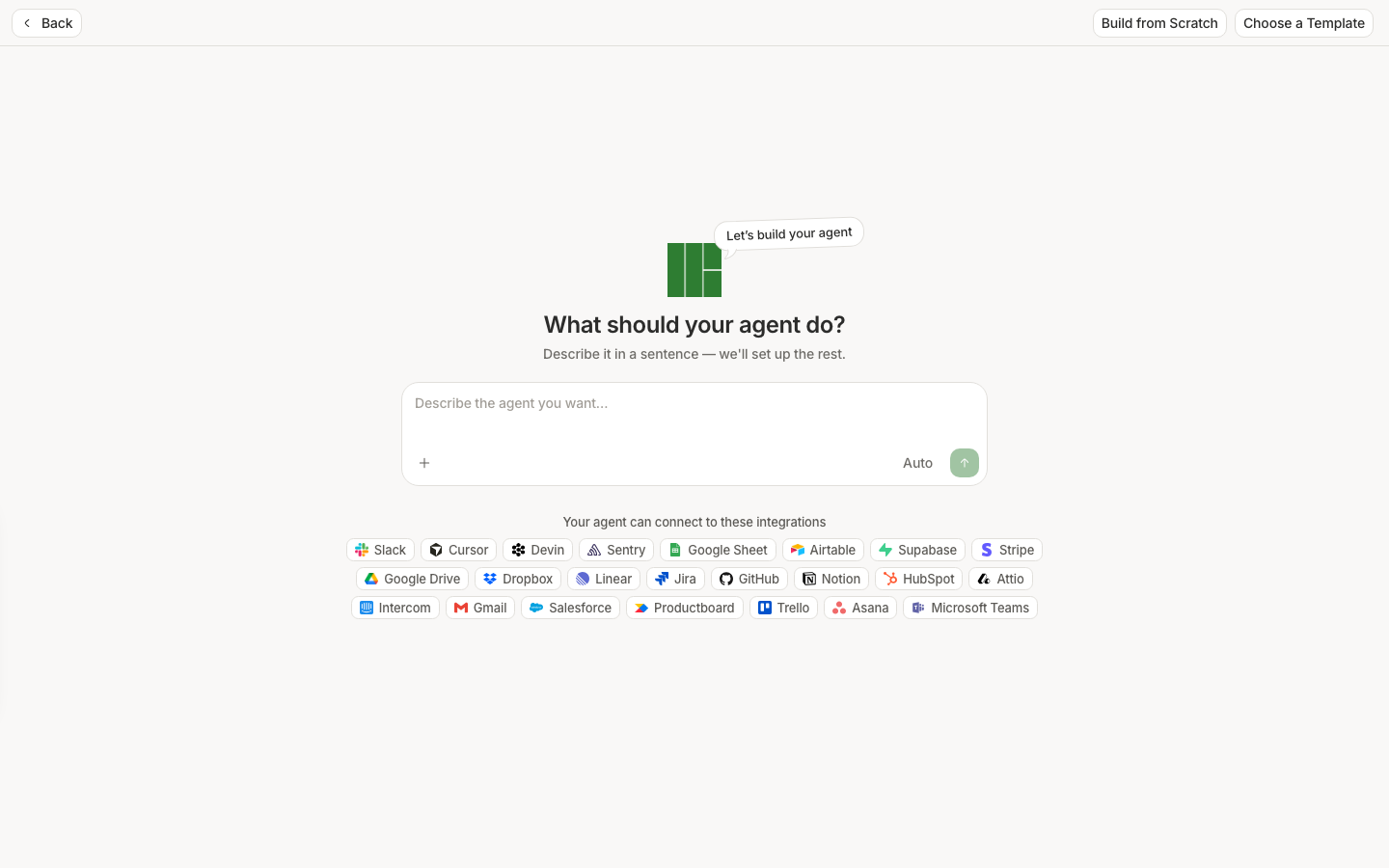
Example prompts:
Review recent session replays for checkout friction and summarize the top three patterns with replay links.Alert me in Slack when a new high-impact runtime issue appears.Attach only the tools you need
Add connectors / toolboxes the job requires (project data tools, Slack, etc.). Skip everything else. Over-permissioned agents are harder to trust and harder to debug.
If a connector needs OAuth or keys, finish that in Settings before you expect a successful test chat.
Test, then save
Use the builder test chat with a real question the agent should answer in production. Check that replies cite project surfaces you can open (Replays, Issues, Dashboard).
Only then Save. Open the agent and run it once (or wait for the schedule). Read the run / chat result and follow one link into Replays or Issues the same way you would after Ask Home.
What good looks like
- A saved agent exists with a clear name and instructions you would defend.
- At least one run produced an answer grounded in your project data.
- You opened evidence from that run instead of trusting the summary alone.
If it did not work
- Builder will not save — required fields (usually name / instructions) still empty.
- Test chat cannot see data — wrong project, or install not verified.
- Schedule / Slack silent — connector not connected, or automation not enabled; see Agents tools and Settings → Connectors.
Next
Triage a production error or watch a session on whatever the agent surfaced.
Field-level builder reference: Create agent. Manage list chrome: Agents overview.